

TL;DR
There’s no single button in Adobe that converts an InDesign file directly to a native, fully editable Illustrator file. The most common workaround is exporting your InDesign file as a PDF and opening it in Illustrator. This works for simple layouts but comes with real limitations: live text may break, clipping masks can appear unexpectedly, and the file won’t behave like something built natively in Illustrator. For a more reliable conversion with better output, a third-party tool like IDMarkz is worth considering. This post walks you through both options to convert an InDesign file to Illustrator, so you can choose what makes sense for your project.
If you’ve ever needed to convert an InDesign file to Illustrator and gone looking for a straightforward answer, you’ve probably noticed that most of the resources out there are either too vague or assume you already know things you don’t. So let’s fix that.
Whether a client sent you an .indd file and you need to work with it in Illustrator, you’re trying to extract design elements for a different project, or a printer made a file format request that left you scratching your head, this guide covers the methods that actually exist, what each one does well, and where each one falls short.

Why You Can't Just Convert an InDesign File to Illustrator Directly
Before getting into the how, it’s worth understanding why this conversion isn’t as clean as you might hope. InDesign and Illustrator are both Adobe products, but they’re built for fundamentally different things. InDesign is a layout and publishing tool, great for multi-page documents, text-heavy content, grids, and master pages. Illustrator is a vector illustration tool, built around individual artwork, paths, and scalable graphics.
Because of how differently these apps handle text, frames, and page structure, there’s no built-in “Save As Illustrator” option inside InDesign. Adobe hasn’t created a direct one-click conversion path between the two, which means every method involves a workaround of some kind. Knowing that going in saves a lot of frustration.
Method 1: Export as PDF, Then Open in Illustrator
This is the most common way people convert an InDesign file to Illustrator, and for simple, single-page layouts, it gets the job done. Here’s how it works.
Step 1: Export your InDesign file as a PDF.
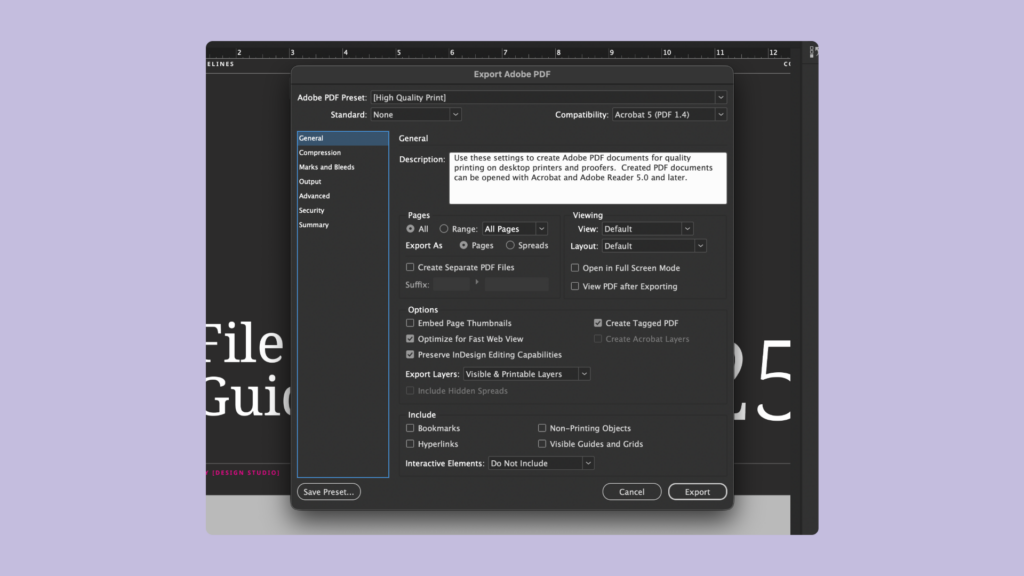
In InDesign, go to File > Export and choose Adobe PDF (Print) as the format. When the Export Adobe PDF panel opens, select “High Quality Print” from the Adobe PDF Preset dropdown and click Export.
Step 2: Open the PDF in Illustrator.
Open Illustrator, go to File > Open, and select the PDF you just exported. Make sure “Import PDF as Links” is turned off when prompted, otherwise the pages will come in as linked files rather than editable content.
Step 3: Save as an Illustrator file.
Once your PDF is open in Illustrator, go to File > Save As and choose the .ai format. Done, technically.
What you’ll actually get: The result is usable, but it’s not a clean native Illustrator file. Text often comes in as outlined paths rather than live, editable type. Fonts may be missing or substituted. According to discussions in the Adobe Community, many clipping masks can appear in the converted file even if they weren’t present in the original InDesign layout, which can make the file annoying to work with if you need to edit individual elements. The more complex your InDesign layout, the messier this tends to get.
For a simple one-page layout with minimal text and a few graphic elements, the PDF route works fine. For anything more complex, manage your expectations.
Method 2: Use a Third-Party Conversion Tool
If you need to convert an InDesign file to Illustrator more reliably and with cleaner results, a third-party tool is the better option. IDMarkz by Markzware is a macOS app that converts .indd InDesign documents to native .ai Illustrator files, and it does it without requiring InDesign to be installed on your machine.
To use it, you open IDMarkz, drop your InDesign file onto the interface, and then select “Illustrator” from the options. IDMarkz opens the file directly in Illustrator.
This is especially useful if you’ve received an .indd file from a client or another designer and you don’t have InDesign installed, or if you’re working on a Mac and need a more reliable output than the PDF route gives you. IDMarkz is a paid tool, so whether it’s worth it really depends on how often you’re dealing with this kind of conversion.
A free version of IDMarkz exists for previewing InDesign files. The export features require a license purchase.

What Actually Transfers (And What Doesn't)
Regardless of which method you use to convert an InDesign file to Illustrator, there are some consistent things to know about what survives the conversion and what gets lost or changed.
What generally comes through okay: Basic vector shapes, placed images (as embedded or linked objects), fills and strokes, and overall layout structure.
What tends to get messy: Live editable text is the biggest one. When you convert an InDesign file to Illustrator via the PDF route, text frequently gets broken into individual word or character groups, or converted to outlined paths entirely, meaning you can’t edit it as type anymore. Paragraph text won’t always be maintained, and words or characters can be broken apart in ways that make the file hard to clean up.
Multi-page documents are another issue. Illustrator uses artboards, not pages, and the way InDesign handles multi-page layouts doesn’t map neatly onto Illustrator’s artboard structure. If you’re working with a multi-page document, you’ll likely need to handle each page separately.
Transparency effects, master page items, and InDesign-specific features like text wrap also don’t transfer cleanly.
The honest takeaway: converting an InDesign file to Illustrator always involves some degree of cleanup. Plan for it rather than assuming the file will be immediately ready to use.
When Should You Actually Do This?
Not every situation calls for converting an InDesign file to Illustrator. In some cases, there’s a better path.
If you’re trying to deliver a final file to a printer, a high-quality PDF export from InDesign is almost always the right move. Any printer that can’t accept a PDF and insists on a native Illustrator file is worth reconsidering as a print partner in general.
If you’re trying to extract a logo, icon, or specific graphic element from an InDesign layout to use in another context, converting just that portion to a PDF and opening it in Illustrator can work well. The conversion tends to be cleaner when you’re working with a smaller, simpler piece of artwork rather than a full document.
If you need to hand off an editable file to someone who works exclusively in Illustrator, set expectations clearly about what “editable” will mean after conversion. The receiving designer will likely need to do some cleanup work.
And if you’re in a situation where you regularly need to convert InDesign files to Illustrator, that’s a strong signal to look at your workflow more broadly and see if there’s a way to streamline it upstream so the conversion happens less often.
A Quick Note on Going the Other Direction
Since this question often comes up in tandem: if you’re trying to open an Illustrator file in InDesign, that’s actually a more straightforward process. According to Adobe’s InDesign documentation, Illustrator files saved with “Create PDF Compatible File” enabled can be opened directly in InDesign as editable documents. If that setting wasn’t turned on when the .ai file was saved, you’d need to re-save it in Illustrator with that option checked before InDesign can process it.
Next Steps: Start This Week
If you’ve landed on this post because you have an actual InDesign file sitting in your downloads folder right now, here’s what to do.
Start with the PDF export method. It’s free, it’s built into InDesign, and for a lot of projects it’ll get you what you need. Export your file using the High Quality Print preset, open it in Illustrator with “Import PDF as Links” turned off, and see what you’re working with. If the output is too messy to use, that’s when it’s worth exploring IDMarkz or reconsidering whether the conversion is actually necessary for your specific goal.
If you don’t have InDesign installed and someone sent you an .indd file, download the free version of IDMarkz to at least preview the file and assess what you’re dealing with before committing to anything.
And if you’re regularly running into this situation with clients, it’s worth adding a note to your client onboarding processabout file format expectations. The cleaner you can make that conversation upfront, the less time you’ll spend on workarounds later.
Stay in the Loop
If posts like this are useful to you, my newsletter is where I share the stuff that doesn’t always make it to the blog: workflow tips, tool breakdowns, and honest takes on the design business side of things. Drop your email below and I’ll see you in your inbox.
Frequently Asked Questions
Can I convert an InDesign file to Illustrator for free?
Yes, using the PDF export method. Export your InDesign file as a PDF using the High Quality Print preset, then open that PDF in Illustrator and save it as a .ai file. This is free and built into both apps, though the output quality varies depending on how complex your layout is.
Will the text still be editable after I convert an InDesign file to Illustrator?
Often, no. When you use the PDF route to convert an InDesign file to Illustrator, text frequently comes in as outlined paths or gets broken into groups that aren’t easy to edit as live type. If editable text is important, a third-party tool like IDMarkz tends to give better results, though some cleanup is usually still needed.
Do I need InDesign installed to convert an .indd file to Illustrator?
Not if you use a tool like IDMarkz, which can open and convert .indd files without InDesign being installed on your machine.
Is there a free version of IDMarkz?
There’s a free version that lets you preview InDesign files, but you’ll need a paid license to access the export and conversion features.
Can I convert a multi-page InDesign document to Illustrator?
Technically yes, but it gets complicated. Illustrator uses artboards rather than pages, so multi-page InDesign documents don’t map over cleanly. You’ll likely need to handle pages individually and do significant cleanup.
What's the best format to send to a printer instead of converting to Illustrator?
A high-quality PDF exported directly from InDesign is the industry standard for print delivery. Most professional printers work with PDF without any issues, and it’s a much cleaner output than anything that comes out of an InDesign-to-Illustrator conversion.